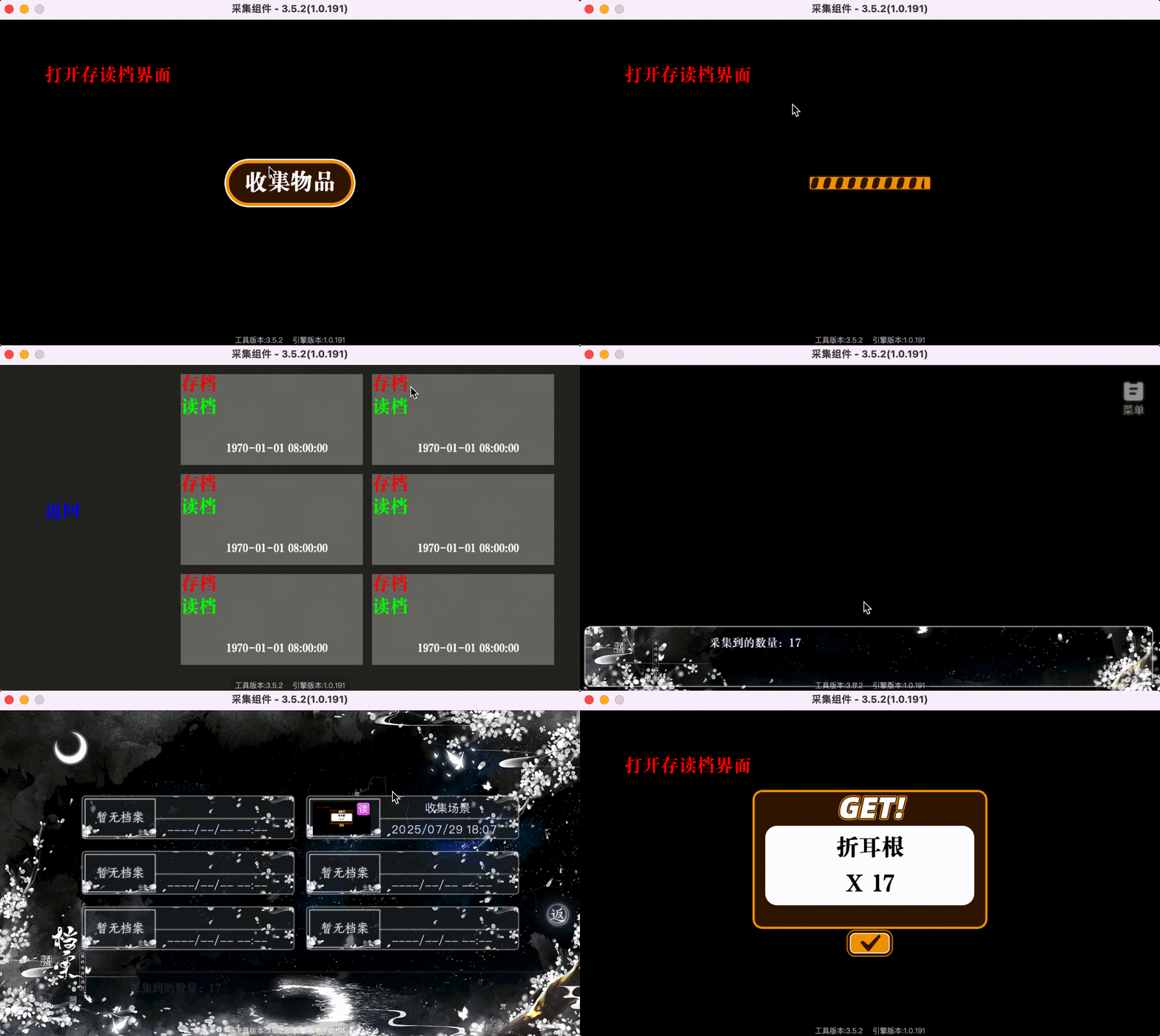
Appearance
使用制作的存读档界面
现在已经制作好了存读档界面,如果不知道怎么制作可以参考制作存读档界面。 我们使用收集场景来演示。收集组件
收集场景需要存储什么内容
- 传入参数,这个收集场景,我们需要把所有的传入参数在存档时保存。
- 当前场景的显示状态,存档时记录当前状态即可,收集场景分为三个状态:
- 显示收集按钮
- 显示收集读条
- 显示收集结果弹窗
- 收集到的结果数量,如果已经显示了收集结果弹窗,读档后弹窗里的内容不应产生变化,所以需要将收集到的结果数量也存档起来。
实现
CollectScene中已经实现的代码不做过多展示,只展示新增的代码。最后展示完整的代码。
添加一个呼叫存读档scene的按钮
在初始化时添加一个打开存读档scene的按钮,点击后打开存读档界面。注意这里不关闭当前场景。
typescript
initShowSaveLoadBtn() {
    let saveLoadBtn = new LM.TextView();
    saveLoadBtn.text = "打开存读档界面"
    saveLoadBtn.fontSize = 40;
    saveLoadBtn.fontColor = "#ff0000";
    saveLoadBtn.x = 100;
    saveLoadBtn.y = 100;
    this.addChild(saveLoadBtn);
    saveLoadBtn.onClick(() => {
        this.showScene("SaveLoadScene");
    })
}
增加存档数据
我们在CollectScene中添加三个属性,并且添加一个状态枚举CollectState,为方便理解,直接用显示内容作为状态名。要对传入参数进行操作,所以我门将所有的this.params变为this.inData。
typescript
// 当前显示状态
enum CollectState {
    // 收集按钮
    CollectBtn,
    // 收集进度条
    CollectProgressBar,
    // 收集弹窗
    CollectResultAlert,
}

@LM.Class("CollectScene")
export class CollectScene extends LM.Scene {
    // 当前显示状态
    currentState: CollectState;
    // 需要存读的传入参数
    inData = [];
    // 收集数量
    collectNum:number = 0;
    init(){
        // 初始化时将传入参数复制一份,后续使用inData,不再使用params
        this.inData = this.params.slice();
        this.initShowSaveLoadBtn();
    }
    // 存档时需要保存的内容
    onSave() {
        return {
            inData:this.inData,
            state: this.currentState,
            collectNum:this.collectNum
        }
    }
}
实现收集场景的状态切换
我们需要在收集场景中添加一个方法,管理状态切换。将每个状态下的显示内容都写在这个方法中。
typescript
// 切换状态
changeState(state: CollectState) {
    this.currentState = state;
    switch (state) {
        case CollectState.CollectBtn:
            this.collectBtn.visible = true;
            this.collectProgressBar.visible = false;
            break;
        case CollectState.CollectProgressBar:
            // 收集按钮隐藏
            this.collectBtn.visible = false;
            // 进度条显示
            this.collectProgressBar.visible = true;
            // 进度条进度设置成0
            this.collectProgressBar.current = 0;
            // 给进度条设置动画
            LM.Tween.get(this.collectProgressBar)
                // 进度条上的属性从当前值到目标值
                .to({
                    current: 1 // 进度条当前值从0-1
                }, Number(this.inData[0]) * 1000) // 进度条动画时间 params[0] 是秒,动画时间是ms,所以乘了1000
                .wait(100) // 等待100毫秒
                .call(() => { // 上面的动画和等待完之后 执行这个传入的方法 到第三个画面
                    //通过api生成一个随机数
                    this.collectNum = LM.getRandom(Number(this.inData[1]), Number(this.inData[2]));
                    this.changeState(CollectState.CollectResultAlert);
                })
            break;
        case CollectState.CollectResultAlert:
            this.collectBtn.visible = false;
            // 隐藏进度条
            this.collectProgressBar.visible = false;
            // 初始化收集弹窗
            this.initCollectResultAlert(this.collectNum);
            break;
    }
}
还原场景内的数据和状态
我们需要在CollectScene中添加onRestore方法,获得存档时保存的数据,再通过这个数据来还原场景内的数据和状态。
typescript
// 从存档中恢复数据
onRestore(data: any) {
    // 还原传入参数
    this.inData = data.inData;
    //初始化收集按钮
    this.initCollectBtn();
    //初始化收集进度条
    this.initCollectProgressBar();
    //初始化存档读档按钮
    this.initShowSaveLoadBtn();
    // 还原场景内ui的状态
    this.changeState(data.state)
}
完整代码实现
typescript
// 当前显示状态
enum CollectState {
    // 收集按钮
    CollectBtn,
    // 收集进度条
    CollectProgressBar,
    // 收集弹窗
    CollectResultAlert,
}
//注册类名
@LM.Class("CollectScene")
export class CollectScene extends LM.Scene {
    //收集按钮
    collectBtn: LM.Button;
    //收集进度条
    collectProgressBar: LM.ProgressBar;
    //收集弹窗
    collectResultAlert: LM.Container;
    //传出数组
    result: [number] = [0];
    // 当前显示状态
    currentState: CollectState = CollectState.CollectBtn;
    // 传入参数
    inData = [];
    // 收集数量
    collectNum:number = 0;
    // 初始化方法
    init(): void {
        this.inData = this.params.slice();
        //初始化收集按钮
        this.initCollectBtn();
        //初始化收集进度条
        this.initCollectProgressBar();
        //初始化存档读档按钮
        this.initShowSaveLoadBtn();
        // 第一个界面内只有这个按钮可见
        this.changeState(CollectState.CollectBtn);
    }
    // 初始化收集按钮
    initCollectBtn() {
        // 创建收集按钮
        this.collectBtn = new LM.Button()
        // 给按钮设置图片
        this.collectBtn.src = "Graphics/教学采集界面素材/按钮底图.png";
        //有传入参数时使用传入参数默默认值为收集按钮
        this.collectBtn.text = this.inData[5] || "收集按钮"
        // 设置按钮颜色为白色
        this.collectBtn.fontColor = "#ffffff"
        // 设置按钮字体大小
        this.collectBtn.fontSize = 50;
        //文本竖向居中
        this.collectBtn.alignVertical = LM.ALIGN_VERTICAL.MIDDLE
        //文本横向居中
        this.collectBtn.alignHorizontal = LM.ALIGN_HORIZONTAL.CENTER
        //传入参数4有值时使用传入参数,没值时使用默认场景内居中,(舞台宽度-按钮宽度)/2
        this.collectBtn.x = Number(this.inData[3]) || (ENGINE_CONFIG.stageW - this.collectBtn.width) / 2;
        //传入参数5有值时使用传入参数,没值时使用默认场景内居中,(舞台高度-按钮高度)/2
        this.collectBtn.y = Number(this.inData[4]) || (ENGINE_CONFIG.stageH - this.collectBtn.height) / 2;
        //添加到场景内
        this.addChild(this.collectBtn);
        //为按钮添加点击事件,点击后显示第二个画面,展示进度条
        this.collectBtn.onClick(() => {
            this.changeState(CollectState.CollectProgressBar);
        })
    }
    // 初始化进度条方法
    initCollectProgressBar() {
        // 创建进度条
        this.collectProgressBar = new LM.ProgressBar();
        // 给进度条设置背景底图
        this.collectProgressBar.background = "Graphics/教学采集界面素材/进度条-2底图.png";
        // 给进度条设置前景
        this.collectProgressBar.progress = "Graphics/教学采集界面素材/进度条-1填充图.png"
        // 进度条当前值
        this.collectProgressBar.current = 0.5;
        // 默认场景内居中
        this.collectProgressBar.x = Number(this.inData[3]) || (ENGINE_CONFIG.stageW - this.collectProgressBar.width) / 2
        // 默认场景内居中
        this.collectProgressBar.y = Number(this.inData[4]) || (ENGINE_CONFIG.stageH - this.collectProgressBar.height) / 2;
        // 把进度条添加到场景上
        this.addChild(this.collectProgressBar)
    }
    // 初始化结果弹窗方法
    initCollectResultAlert(collectNum: number) {
        // 创建弹窗容器
        this.collectResultAlert = new LM.Container();
        // 弹窗背景
        const alertBg = new LM.ImgView();
        // 给弹窗背景图片设置素材
        alertBg.src = "Graphics/教学采集界面素材/获得弹窗-底图.png";
        // 背景添加到弹窗上
        this.collectResultAlert.addChild(alertBg);

        // 物品名称
        const collectGoodsName = new LM.TextView();
        // 物品名称
        collectGoodsName.text = this.inData[6] || "收集物品名称";
        // 物品名称字体大小
        collectGoodsName.fontSize = 50;
        // 物品名称字体颜色 黑色
        collectGoodsName.fontColor = "#000000";
        // 物品名称x坐标与背景图片坐标一致 后续设置宽度一致,直接剧中 比较省事
        collectGoodsName.x = alertBg.x;
        // 设置物品y坐标
        collectGoodsName.y = 100;
        // 物品宽度设置与背景图片宽度一致 便于剧中
        collectGoodsName.width = alertBg.width;
        // 设置文本居中
        collectGoodsName.alignHorizontal = LM.ALIGN_HORIZONTAL.CENTER;
        // 物品名称添加到弹窗上
        this.collectResultAlert.addChild(collectGoodsName);

        // 收集物品数量文本
        const collectGoodsNum = new LM.TextView();
        // 收集物品数量文本内容 X 加上 收集的数量, 默认是99
        collectGoodsNum.text = "X " + (collectNum || 99);
        // 收集物品数量文本字体大小
        collectGoodsNum.fontSize = 50;
        // 收集物品数量文本字体颜色 黑色
        collectGoodsNum.fontColor = "#000000";
        // 收集物品数量文本x坐标与背景图片坐标一致 后续设置宽度一致,直接剧中 比较省事
        collectGoodsNum.x = alertBg.x;
        // 收集物品数量文本的y坐标
        collectGoodsNum.y = 180;
        // 收集物品数量文本宽度与背景图片宽度一致 便于剧中
        collectGoodsNum.width = alertBg.width;
        // 收集物品数量文本居中
        collectGoodsNum.alignHorizontal = LM.ALIGN_HORIZONTAL.CENTER
        // 收集物品数量文本添加到弹窗上
        this.collectResultAlert.addChild(collectGoodsNum);

        // 创建确认按钮
        const sureBtn = new LM.Button();
        // 确认按钮设置素材
        sureBtn.src = "Graphics/教学采集界面素材/获得弹窗-对号按钮.png";
        // 确认按钮坐标要相对于弹窗背景居中,所以使用弹窗背景x + (弹窗背景宽度 - 确认按钮宽度) / 2
        sureBtn.x = alertBg.x + (alertBg.width - sureBtn.width) / 2
        // 确认按钮 要在弹窗背景下,所以使用弹窗背景y+弹窗背景高度
        sureBtn.y = alertBg.y + alertBg.height;
        // 确认按钮添加到弹窗上
        this.collectResultAlert.addChild(sureBtn);
        // 弹窗相对整个场景横向居中
        this.collectResultAlert.x = (ENGINE_CONFIG.stageW - this.collectResultAlert.width) / 2;
        // 弹窗相对整个场景纵向居中
        this.collectResultAlert.y = (ENGINE_CONFIG.stageH - this.collectResultAlert.height) / 2;
        // 弹窗添加到场景上
        this.addChild(this.collectResultAlert)
        // 给确认按钮添加点击事件
        sureBtn.onClick(() => {
            // 传出参数1 也就是第0位 设置为手机数量
            this.result[0] = collectNum;
            // 关闭当前场景 并将传出参数传出
            this.close(this.result)
            // 关闭所有场景 回到上一级,这里回到剧情
            LM.killAllScenesToParent();
        })
    }

    initShowSaveLoadBtn() {
        let saveLoadBtn = new LM.TextView();
        saveLoadBtn.text = "打开存读档界面"
        saveLoadBtn.fontSize = 40;
        saveLoadBtn.fontColor = "#ff0000";
        saveLoadBtn.x = 100;
        saveLoadBtn.y = 100;
        this.addChild(saveLoadBtn);
        saveLoadBtn.onClick(() => {
            this.showScene("SaveLoadScene");
        })
    }
    changeState(state: CollectState) {
        this.currentState = state;
        switch (state) {
            case CollectState.CollectBtn:
                this.collectBtn.visible = true;
                this.collectProgressBar.visible = false;
                break;
            case CollectState.CollectProgressBar:
                // 收集按钮隐藏
                this.collectBtn.visible = false;
                // 进度条显示
                this.collectProgressBar.visible = true;
                // 进度条进度设置成0
                this.collectProgressBar.current = 0;
                // 给进度条设置动画
                LM.Tween.get(this.collectProgressBar)
                    // 进度条上的属性从当前值到目标值
                    .to({
                        current: 1 // 进度条当前值从0-1
                    }, Number(this.inData[0]) * 1000) // 进度条动画时间 params[0] 是秒,动画时间是ms,所以乘了1000
                    .wait(100) // 等待100毫秒
                    .call(() => { // 上面的动画和等待完之后 执行这个传入的方法 到第三个画面
                        //通过api生成一个随机数
                        this.collectNum = LM.getRandom(Number(this.inData[1]), Number(this.inData[2]));
                        this.changeState(CollectState.CollectResultAlert);
                    })
                break;
            case CollectState.CollectResultAlert:
                this.collectBtn.visible = false;
                // 隐藏进度条
                this.collectProgressBar.visible = false;
                // 初始化收集弹窗
                this.initCollectResultAlert(this.collectNum);
                break;
        }
    }
    onSave() {
        return {
            inData:this.inData,
            state: this.currentState,
            collectNum:this.collectNum
        }
    }
    onRestore(data: any): void {
        this.inData = data.inData;
        this.collectNum = data.collectNum;
        //初始化收集按钮
        this.initCollectBtn();
        //初始化收集进度条
        this.initCollectProgressBar();
        //初始化存档读档按钮
        this.initShowSaveLoadBtn();
        this.changeState(data.state)
    }
}
示意图